Remote Desktop is a tool to control your PC computer your phone
Links to the app pages in stores:
- Android: Lite (v1.3) Full (v1.3)
- Bada OS (WVGA – 800×480): Lite (v1.2) Full (v1.2)
- Bada OS (WQVGA – 400×240): Lite (v1.2) Full (v1.2)

Main features:
- Mouse and Keyboard emulation
- IP based communication
- Multitouch support (Mouse drag’n’drop, Ctrl+C, etc)
- User-definable layouts (BRE format)
Before first use:
- Install RemoteDesktopServer on the PC (find the link below)
- Open the port TCP:8899 on the PC if any firewall is installed
- Run RemoteDesktopServer on the PC (add to autostart to have it always run)
Win32-compatible server:
Go to
www.simx.mobi/rdesktop
and click:
RemoteDesktopServerSetup130.exe
How to use:
- Install and run RemoteDesktopServer on PC machine (look the above section for details)
- If the WiFi is available: Make sure WiFi is running on the phone
- If the WiFi is not available: Ensure the port 8899/TCP is available from the Internet (redirect the port in your LAN router if needed)
- Run RemoteDesktop tool on the phone
- Set correct IP of the server
- Click Connect
- Press keyboard or mouse buttons to control your PC
General advice:
- To switch the layout: Android: Click menu, Bada: Click Camera button
- To go back to the main screen: Android: click Back button, Bada: Long press Camera button
Remote Desktop controlling:
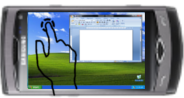
- To move the screen: drag the finger. To single click, tap the screen
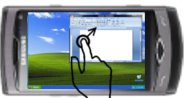
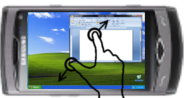
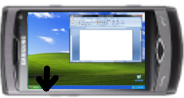
- To zoom in/out – use two-finger zooming or use side UP/DOWN buttons
- Don’t lock the screen before you connect by RemoteDesktop – the application doesn’t use the Windows RDP protocol. So it doesn’t support Windows-based authentication
Release Notes:
V1.0.1 (2011.01.11):
- key click marked by short vibration and key highlight
- user-definable layouts (Android: /sdcard/brelayout, Bada: /Others/bRemote)
- Bada: fast switching between layouts using Camera button (short click to switch the layout, long click to back to the main page)
- Settings page
V1.0.6 (2011.01.23):
- mouse wheel supported
- Full Keyboard available on Remote Desktop layouts.
V1.1 (2011.02.17):
- Customizable auto-hold of control keys (SHIFT, CTRL, ALT) and mouse buttons
- Cursor-oriented steering in remote desktop
V1.2 (2011.04.19):
- Password-based authorization
Known bugs:
- Administrator’s privilege request dialog is not displayed on the screen
“But I am not able to use rdesktop mouse and rdesktop keyboard. The screen is just black for both of them except for the left and right buttons for the mouse and the keyboard buttons for the keyboard.”
Same, only black screen….
What to do?
Server has been fixed and Remote Desktop will work properly:
http://www.simx.mobi/wp-upload/RemoteDesktopServerSetup102.exe
In fact, since I purchased WAVE mobile 6 months ago, and I was trying to find an application that can connect me through my mobile remotly to PC, its just an amazing application and very important. Although I have one concern here that I can have the full mouse & keybord control but it will not display my PC desktop. I think another updated version is required to enable this functionality properly.
Świetna aplikacja, niestety na bada OS 1.2 nie ma podglądu ekranu, ale klawiatura i myszka działają. Dopracowałbym grafikę i kompatybilność z OS 1.2 i czekał na nagrodę za najlepszą aplikację w swojej kategorii 🙂 Pozdrawiam
Otóż jest. Wszystko działa należycie.
pewnie, u mnie na 1.2 śmiga aż miło. Przede wszystkim opcja Media Player jest kompatybilna z iTunes – cudownie 😀 Polecam dopracować grafikę tak aby imitowało klawisze z Windy V lub 7, wtedy użytkowanie stanie się jeszcze przyjemniejsze. Mam wreszcie zdalnego pilota, tyle ze trosze baterio-żernego. Sprawdzę jeszcze czy na danych pakietowych działa..
AWESOME app but can make a virtual azerty keybord because I live in Belgium and almost every computer works with an azerty keybord. And if iItype an “q” on my samsung wave my computer recognises that as an “a” and that’s a little annoying. 🙂
THANK YOU VERY MUCH! This is the best and most useful APP for Bada I have ever seen!
Thanks for Remote Desktop, its working great and in a next few days i am gonna test it more. Great Job again !!!
:-))
any help me
I tried out your application and found it really useful. But sadly all features work except the main one – remote desktop. I can’t see anything on my Wave screen. I have Windows XP machine with McAfee installed
I am sorry. The earlier comment was posted on the remote desktop page instead of bcontrol.
Anyways, I have a small problem with RemoteDesktop too. Evrything connects and is fine. I can use the full mouse, the full keyboard, and the media player. But I am not able to use rdesktop mouse and rdesktop keyboard. The screen is just black for both of them except for the left and right buttons for the mouse and the keyboard buttons for the keyboard. I suppose instead of the black screen, I was supposed to see my desktop. Also the rdesktop mouse function does not work. I cant move the cursor on the screen.
Please help. I am using Windows Vista.
u cant use a camera button for keybord mouse
First of all, great app! From the look of it, bcontrol looks cool. But I am not able to experience this fun. I have downloaded the bcontrol server to my PC. My PC runs Windows Vista Home Premium. bcontrol is not able to control my PC. The bcontrol server provides me with the IP address, which I entered into the WiFi net address box of the bcontrol app on the phone. But when I try to use any of the features like mouse, keyboard, joystick, etc. nothing happens on my PC.
Is bcontrol incompatible with Windows Vista?
Please help. Looking forward to many more cool apps from you.
Thanks.
i have also windows vista home premium and i don’t have any problems with the program
I have Vista home premium but mine works :/
First of all, thanks for creating such great app for bada OS. This is the app that exactly what Samsung WAVE is needed. With this app installed will make WAVE become even smarter.
Hope in the future this app can support unlock the screen, windows based authentication, and a shortcut key for “Ctrl + Alt + Del” and as well as “Win” key.
Also hope that the future release will support Windows RDP protocol which it doesn’t require to install and software on the computer.
Thanks.
mine does get connected could u plz help me out
can some one help me out
Moglby mi ktos wyslac te aplikacje na maila patrykkob@gmail.com z gory dzieki 😉