Remote Desktop is a tool to control your PC computer your phone
Links to the app pages in stores:
- Android: Lite (v1.3) Full (v1.3)
- Bada OS (WVGA – 800×480): Lite (v1.2) Full (v1.2)
- Bada OS (WQVGA – 400×240): Lite (v1.2) Full (v1.2)

Main features:
- Mouse and Keyboard emulation
- IP based communication
- Multitouch support (Mouse drag’n’drop, Ctrl+C, etc)
- User-definable layouts (BRE format)
Before first use:
- Install RemoteDesktopServer on the PC (find the link below)
- Open the port TCP:8899 on the PC if any firewall is installed
- Run RemoteDesktopServer on the PC (add to autostart to have it always run)
Win32-compatible server:
Go to
www.simx.mobi/rdesktop
and click:
RemoteDesktopServerSetup130.exe
How to use:
- Install and run RemoteDesktopServer on PC machine (look the above section for details)
- If the WiFi is available: Make sure WiFi is running on the phone
- If the WiFi is not available: Ensure the port 8899/TCP is available from the Internet (redirect the port in your LAN router if needed)
- Run RemoteDesktop tool on the phone
- Set correct IP of the server
- Click Connect
- Press keyboard or mouse buttons to control your PC
General advice:
- To switch the layout: Android: Click menu, Bada: Click Camera button
- To go back to the main screen: Android: click Back button, Bada: Long press Camera button
Remote Desktop controlling:
- To move the screen: drag the finger. To single click, tap the screen
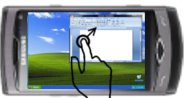
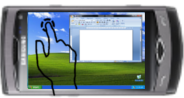
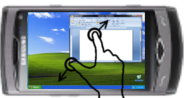
- To zoom in/out – use two-finger zooming or use side UP/DOWN buttons
- Don’t lock the screen before you connect by RemoteDesktop – the application doesn’t use the Windows RDP protocol. So it doesn’t support Windows-based authentication
Release Notes:
V1.0.1 (2011.01.11):
- key click marked by short vibration and key highlight
- user-definable layouts (Android: /sdcard/brelayout, Bada: /Others/bRemote)
- Bada: fast switching between layouts using Camera button (short click to switch the layout, long click to back to the main page)
- Settings page
V1.0.6 (2011.01.23):
- mouse wheel supported
- Full Keyboard available on Remote Desktop layouts.
V1.1 (2011.02.17):
- Customizable auto-hold of control keys (SHIFT, CTRL, ALT) and mouse buttons
- Cursor-oriented steering in remote desktop
V1.2 (2011.04.19):
- Password-based authorization
Known bugs:
- Administrator’s privilege request dialog is not displayed on the screen
this app is just awesome! it’s working perfectly over wi-fi.
but so far i haven’t been able to connect to my pc over 3G/EDGE (“connection disconnected. network is unavailable”), although port 8899 is open.
am i missing something here?
regards,
winzer1982
You are not the only one.
I’ve got the same problem.
This is one of the best application in Samsung Apps. Simply !!! FANTASTIC !!!. Worked perfectly.
is possible to connect in to remote pc, throw other network? or need to be in the same?
First i thought “omg another buggy nonsense app”
but this is so fantastic !
amazing !
best app ever downloaded !!!
thank u very much
in german i would say “das ist absolut der hammer !”
thank you so much! finally an app that isn’t a retarded clock widget or rss catastrophe. and also for free, wow. just add a scroolwheel and maybe a smoother transmission rate and access over 3G and it will be perfect.
Would be possible to add also Microsoft’s RDP (Remote Desktop Protocol© http://en.wikipedia.org/wiki/Remote_Desktop_Protocol ) support?
This shouldn’t require a custom local-PC server to run in background but would use what Windows already has built-in.
przylaczam sie do ww zapytania
bedzie to kiedys mozliwe?
great app but its super unsecure when you connect via internet
thats true can you add passwort authentication ?
Pingback: Remote Control: for your PC! | badablog.net - all about bada in one blog
hey guys very great work.wish u a very best of luck for all other application developments.
i would just like to see an app like the miq app by dashwire which uploads ur video,photos,contacts,messages to the miq website automatically when an new photo is created in the photo gallery.the miq app runs at the background and scans for the changes in the gallery and looks for the photos and videos and automatically uploads them to the website.
secondly is it possible to have a utorrent app for the samsung wave.
best regards ,
atul.
just downloaded the app and i find it to be similar with Bcontrol
pros: love the media player option! really makes it easier for me to watch movies when im far from my laptop mouse
cons: wish the mouse action has a scrollable wheel at the right like in bcontrol..