Remote Desktop is a tool to control your PC computer your phone
Links to the app pages in stores:
- Android: Lite (v1.3) Full (v1.3)
- Bada OS (WVGA – 800×480): Lite (v1.2) Full (v1.2)
- Bada OS (WQVGA – 400×240): Lite (v1.2) Full (v1.2)

Main features:
- Mouse and Keyboard emulation
- IP based communication
- Multitouch support (Mouse drag’n’drop, Ctrl+C, etc)
- User-definable layouts (BRE format)
Before first use:
- Install RemoteDesktopServer on the PC (find the link below)
- Open the port TCP:8899 on the PC if any firewall is installed
- Run RemoteDesktopServer on the PC (add to autostart to have it always run)
Win32-compatible server:
Go to
www.simx.mobi/rdesktop
and click:
RemoteDesktopServerSetup130.exe
How to use:
- Install and run RemoteDesktopServer on PC machine (look the above section for details)
- If the WiFi is available: Make sure WiFi is running on the phone
- If the WiFi is not available: Ensure the port 8899/TCP is available from the Internet (redirect the port in your LAN router if needed)
- Run RemoteDesktop tool on the phone
- Set correct IP of the server
- Click Connect
- Press keyboard or mouse buttons to control your PC
General advice:
- To switch the layout: Android: Click menu, Bada: Click Camera button
- To go back to the main screen: Android: click Back button, Bada: Long press Camera button
Remote Desktop controlling:
- To move the screen: drag the finger. To single click, tap the screen
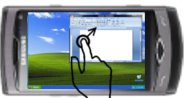
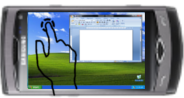
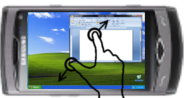
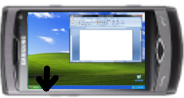
- To zoom in/out – use two-finger zooming or use side UP/DOWN buttons
- Don’t lock the screen before you connect by RemoteDesktop – the application doesn’t use the Windows RDP protocol. So it doesn’t support Windows-based authentication
Release Notes:
V1.0.1 (2011.01.11):
- key click marked by short vibration and key highlight
- user-definable layouts (Android: /sdcard/brelayout, Bada: /Others/bRemote)
- Bada: fast switching between layouts using Camera button (short click to switch the layout, long click to back to the main page)
- Settings page
V1.0.6 (2011.01.23):
- mouse wheel supported
- Full Keyboard available on Remote Desktop layouts.
V1.1 (2011.02.17):
- Customizable auto-hold of control keys (SHIFT, CTRL, ALT) and mouse buttons
- Cursor-oriented steering in remote desktop
V1.2 (2011.04.19):
- Password-based authorization
Known bugs:
- Administrator’s privilege request dialog is not displayed on the screen
Is there a possibility to run this on a linux desktop?
Peguei esse excelente programa em http://www.badabrasil.com.br
me manda se vc tiver ele ainda, não consigo baixar
o meu cel é um wave 533
I think you have created a great remote desktop app for bada OS. Unfortunately the graphical quality is not as good as “bControl”. For graphical purposes I think you can take “bControl” as your reference. (Mouse, keyboard layout design……..etc)
Another thing is about switching layout concept, I personally very like the switching style as what showing here
And the last thing would be the support for the Microsoft RDP Protocol and also support for the authentication as well.
Thanks in advance.
Amazing! It worked at first try!
Thank You for this really usefull app, and also for gratis publishing!
Just want to ask what is the setting “Remote Desktop Inertia” for ??
@ BsR: I totally agreed with you about adding a scrolling like current what in the notebook mouse pad. With this feature it will ease our movement.
Thanks.
connection over 3G/EDGE is also working fine with the external IP address! 🙂
but how can i use dyndns here? there’s no way i can enter the dyndns address name in the remote desktop server IP field…
and maybe there should be 2 fields to enter, one that is used for wi-fi and one for external access, so you don’t have to switch addresses all the time. 🙂
I would like to get this possibility, too!
I can only enter 15 characters. That’s not enough for my DynDNS address.
@All: If you want to get access via 3G / mobile network, just use dyndns.com ! – forward to your router with port and so on.. its all explained on dyndns how to use it.
@Jacek Kalamarz: Thanks for app! The nearly the most useful app at the moment for bada, but the server is a little bit unstable. i tried to change mouse speed and so on during connection: long pressed camera button, “prev.” and change it from 5 to 8 and the picture quality up from standard value. If i close a program like task manager on the pc via your app. the server crashs very often or it comes a network error with “mouse not synchron” or something like that – could write down the message because windows react with a white app-screen, so i couldnt read it again.
Except that, there is only a little question: i hoped, that i can use you’re app for watching streams via my pc because of not full support of flash. Is it possible to get the “refresh” up to 0.0* seconds? With the lowest (0.1) its not possible because you see the stucking video.
Another idea/addition while writing this text: Could you add the point “.” on your own keyboard? So if i use the browser of the pc, i would need it for adding the TLD (.com and so on), without changing to the full keyboard, because than i can’t see, what i’m writing.
All in all a great App with nice functionality 🙂
Forgot 1 think: is it possible to add scrolling buttons to your mousepad or the rDesktop-pad ? because left and right are good, but scrolling is a little bit difficult, if you have to hit the scrollbar on the sides the most time 🙂 – thanks
Hi I’ve downloaded the version 1.0.2 server software and this time my WAVE successfully connected to the PC works like VNC. Great!!
Mouse is OK. But the keyboard is not working at all.
Can you please rectify the problem please…… 🙂 I cannot type anything in the Microsoft Word after switch to “rDesktopKeyboard”.
Another problem is WAVE will give “Resource not enough…” kind of error message if I leave the screen until it get locked. If I unlock the screen, it will give error message then I have to shutdown and relaunch the “Remote Desktop”.
Hope the above problem can be rectified as soon as possible.
Many thanks in advance.
Oh awesome, i figured it out!
If you want to connect over EDGE/3G (so not via WiFi) you’ve got to enter a different IP address than the (or at least, my…) application shows.
Use the 192.168etc. (local) server address for connection via WiFi.
Use your external IP-address (obtainable via http://www.whatismyipaddress.com or any other similar website via Google) and be sure to have your router (if any) set to forward TCP port 8899 to your local IP address.
A bit laggy, but that’s because of my connection speed:) Awesome to have it working like this!
The part about the external IP-address is for connection over EDGE/3G, forgot to mention that.
So the local IP-address 192.168…etc. is for connection via WiFi, the external IP address is for connection via EDGE/3G.
By the way, i can’t get it working for any other port than 8899 (not even when those ports are properly set up) which is not ideal for security purposes, but it’s a fun tool after all:D
It works great over 3G/EDGE network … Thanks
This app is awesome, works perfect for me over WiFi (as long as i stay in decent range so the connection is working). Even dragging etc. is working, just like a laptop’s touchpad.
Just trying to figure out how to get the special marks (!-@# etc) out of the keyboard…
Also haven’t been able to connect over regular EDGE/3G internet connection, but that’s no problem since there is a WiFi network everywhere near my computer. Would be fun to be able to access my computer from outside though. Which doesn’t surprise me, since the IP address supplied is the local address of my computer. No way the phone could access my computer through that address.
A scrollwheel at the right of the mousepad would also be a nice suggestion.