Remote Desktop is a tool to control your PC computer your phone
Links to the app pages in stores:
- Android: Lite (v1.3) Full (v1.3)
- Bada OS (WVGA – 800×480): Lite (v1.2) Full (v1.2)
- Bada OS (WQVGA – 400×240): Lite (v1.2) Full (v1.2)

Main features:
- Mouse and Keyboard emulation
- IP based communication
- Multitouch support (Mouse drag’n’drop, Ctrl+C, etc)
- User-definable layouts (BRE format)
Before first use:
- Install RemoteDesktopServer on the PC (find the link below)
- Open the port TCP:8899 on the PC if any firewall is installed
- Run RemoteDesktopServer on the PC (add to autostart to have it always run)
Win32-compatible server:
Go to
www.simx.mobi/rdesktop
and click:
RemoteDesktopServerSetup130.exe
How to use:
- Install and run RemoteDesktopServer on PC machine (look the above section for details)
- If the WiFi is available: Make sure WiFi is running on the phone
- If the WiFi is not available: Ensure the port 8899/TCP is available from the Internet (redirect the port in your LAN router if needed)
- Run RemoteDesktop tool on the phone
- Set correct IP of the server
- Click Connect
- Press keyboard or mouse buttons to control your PC
General advice:
- To switch the layout: Android: Click menu, Bada: Click Camera button
- To go back to the main screen: Android: click Back button, Bada: Long press Camera button
Remote Desktop controlling:
- To move the screen: drag the finger. To single click, tap the screen
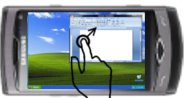
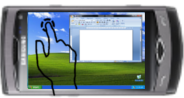
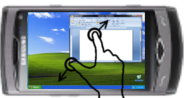
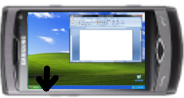
- To zoom in/out – use two-finger zooming or use side UP/DOWN buttons
- Don’t lock the screen before you connect by RemoteDesktop – the application doesn’t use the Windows RDP protocol. So it doesn’t support Windows-based authentication
Release Notes:
V1.0.1 (2011.01.11):
- key click marked by short vibration and key highlight
- user-definable layouts (Android: /sdcard/brelayout, Bada: /Others/bRemote)
- Bada: fast switching between layouts using Camera button (short click to switch the layout, long click to back to the main page)
- Settings page
V1.0.6 (2011.01.23):
- mouse wheel supported
- Full Keyboard available on Remote Desktop layouts.
V1.1 (2011.02.17):
- Customizable auto-hold of control keys (SHIFT, CTRL, ALT) and mouse buttons
- Cursor-oriented steering in remote desktop
V1.2 (2011.04.19):
- Password-based authorization
Known bugs:
- Administrator’s privilege request dialog is not displayed on the screen
Dzięki za informacje Panie Jacku. Tak jak myślałem – pośpieszyłem się 🙂
Panie Jacku, napisał Pan że jest wersja 1.06, tymczasem do pobrania jest najnowsza wersja 1.05, a aplikacja w telefonie: 1.01. Nie mam funkcji symulacji kółka myszy. Być może pojawi się na dniach, a ja się pośpieszyłem? 😉 Pozdrawiam!
1.0.6 jest wysłana do akceptacji, powinna być dostępna gdzieś za tydzień (zobacz najnowszy post na głównej stronie 🙂
Great App – basicly just like the EasyVNC app which costs 4€ but this one is for free!!
That (in contrast to EasyVNC) an additional app is needed to run the program is not that bad in my point of view but implementing a few more features would be great and a lot of people will be willing to pay for that app!
– “copy” authentification from EasyVNC
– put an option-menu (or shortcuts) to execute combinations like alt+tab, alt+f4, … in between “left” and “right” of “Big Mouse” and “rDesktop”
– Would be great if the order of the remote desktop layouts could be changed to the likes of the user
Apart form that: All the thumbs up that I have!! 😉
Continue the great work!! 🙂
PS: Maybe also consider working on a similar FTP app like EasyFTP if you have enough time? 🙂
Por fin una aplicación útil para nuestro bada. GRACIAS por saber hacer las cosas bien. Un saludo.
hallo das remonte desktop is cool hatt nur fehler
1 mann kann die tastatur nicht manual starten in bada app
2 login fehlt
3 were es schön wenn man das auch hinter router nutzen kann
4 manual prot änderrung bei RemoteDesktopServerSetup105.exe
Hey Guys great App, but i think the graphic is very poor, i am a graphic designer am welling to help if u need anything.
cheers
Please man extend ur help to most of the bada developers who spammed the apps store with poorly designed apps …
🙁
Well i think it a good idea but i can’t use this software although i need it too much. First of all, i’m using win 7 64 bit ultimate. And in local area network (wifi) after selecting a layout i see only layout. There is no “Run” button on screen as described in your manual. Please help me, i’ll drive crazy
great app…
however in later releases, you might wanna consider being able to logon to the PC from a different Network that where our PCs are!
also:
1. add authentication
2. support alt-tab
3. support ctr-alt-delete
4. invoke task manager
Mate, please, please make this for samsung wave s723, and others with 240×320 resolution. PLEEEEASE 🙂
WQVGA (240×400) version has been prepared and is currently under Samsung’s acceptation procedure.
Is the Application launched for Wave 723?? I tried with my Phone It’s not workin… 🙁
Aplikacja jest NIESAMOWITA! Pomyśleć o jej potencjale… W tym momencie ziścić się może marzenie o “Cloud Computing`u”. Mam na myśli odpalenie gry z telefonu na komputerze. Przetestowałem i działa. Nie ma obrazu tylko na niektórych grach, np.: COD Black Ops (Windows 7 32bit, Steam), Torchlight. Nie testowałem jeszcze na 3G, bo to jest dla mnie najważniejsze. Chciałbym odpalić to w pracy i zobaczyć opad szczęki kolegów ;-P Oczywiście do tego trzeba mieć duuużo Mb w pakiecie 🙂 Obraz strasznie klatkuje, ale mam nadzieje że to w przyszłości zostanie wyeliminowane i będzie można odpalić grę z płynnym obrazem (i dźwiękiem! 🙂 ). Tutaj kieruję wielką prośbę do twórców apps`a… Byłoby świetnie gdyby dorzucić obsługę wychyłu telefonu (i odpowiedniki klawiszy), aby można było sterować np.: wyścigami, czy strzelaniną(coś w stylu sterowania gier na telefon). W każdym razie ten program to świetna robota!!! POZDRAWIAM TWÓRCÓW!