Remote Desktop is a tool to control your PC computer your phone
Links to the app pages in stores:
- Android: Lite (v1.3) Full (v1.3)
- Bada OS (WVGA – 800×480): Lite (v1.2) Full (v1.2)
- Bada OS (WQVGA – 400×240): Lite (v1.2) Full (v1.2)

Main features:
- Mouse and Keyboard emulation
- IP based communication
- Multitouch support (Mouse drag’n’drop, Ctrl+C, etc)
- User-definable layouts (BRE format)
Before first use:
- Install RemoteDesktopServer on the PC (find the link below)
- Open the port TCP:8899 on the PC if any firewall is installed
- Run RemoteDesktopServer on the PC (add to autostart to have it always run)
Win32-compatible server:
Go to
www.simx.mobi/rdesktop
and click:
RemoteDesktopServerSetup130.exe
How to use:
- Install and run RemoteDesktopServer on PC machine (look the above section for details)
- If the WiFi is available: Make sure WiFi is running on the phone
- If the WiFi is not available: Ensure the port 8899/TCP is available from the Internet (redirect the port in your LAN router if needed)
- Run RemoteDesktop tool on the phone
- Set correct IP of the server
- Click Connect
- Press keyboard or mouse buttons to control your PC
General advice:
- To switch the layout: Android: Click menu, Bada: Click Camera button
- To go back to the main screen: Android: click Back button, Bada: Long press Camera button
Remote Desktop controlling:
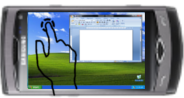
- To move the screen: drag the finger. To single click, tap the screen
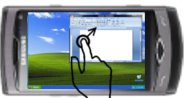
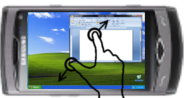
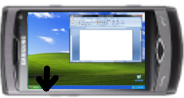
- To zoom in/out – use two-finger zooming or use side UP/DOWN buttons
- Don’t lock the screen before you connect by RemoteDesktop – the application doesn’t use the Windows RDP protocol. So it doesn’t support Windows-based authentication
Release Notes:
V1.0.1 (2011.01.11):
- key click marked by short vibration and key highlight
- user-definable layouts (Android: /sdcard/brelayout, Bada: /Others/bRemote)
- Bada: fast switching between layouts using Camera button (short click to switch the layout, long click to back to the main page)
- Settings page
V1.0.6 (2011.01.23):
- mouse wheel supported
- Full Keyboard available on Remote Desktop layouts.
V1.1 (2011.02.17):
- Customizable auto-hold of control keys (SHIFT, CTRL, ALT) and mouse buttons
- Cursor-oriented steering in remote desktop
V1.2 (2011.04.19):
- Password-based authorization
Known bugs:
- Administrator’s privilege request dialog is not displayed on the screen
Very Good http://www.badabrasil.com.br
I downloaded the app but i can’t connect the wave with my PC whith WLAN (WiFi). Have you all have the server port 8899 or should i change it? Please help!
How safe is this app?
Password-based authentication is planned in V1.1
Hi it would be great if this app can run as system services at the background.
Thanks.
I agree with the post above and I will grab more information from google google
i love this app!
but it would be even greater if there would be an mac osx remote desktop server.
Proszę o wersje na linuksa, dziwnie, serwer działa w wine hq, mianowicie w obszarze okienek/programów z windowsa po zjechaniu na linuksa już nie.
Please set up on linux, server wake up on wine but in area windows aplikation, bellow window linux’ no longer
hey. I just got word of this unique webpage and I should really believe that this unique is a nice write-up. Bless you for this kind of awesome info.
THANK YOU VERY MUCH! This is the best and most useful APP for Bada I have ever seen
Jak połączyć z CDMA Router Axesstel 410, Orange. Kto pomoże skonfigurować ustawienia? Przez WiFi działa, ale przez 3G nie moge połączyć. Ustawiłem port na firewallu, wpisuje IP i nic. Wiem że mam zmienne IP, za każdym włączeniem routera jest inne, takie wpisuje w telefonie, port 8899 i pisze connection timeout, itp. Co robie źle? Pomocy.