Remote Desktop is a tool to control your PC computer your phone
Links to the app pages in stores:
- Android: Lite (v1.3) Full (v1.3)
- Bada OS (WVGA – 800×480): Lite (v1.2) Full (v1.2)
- Bada OS (WQVGA – 400×240): Lite (v1.2) Full (v1.2)

Main features:
- Mouse and Keyboard emulation
- IP based communication
- Multitouch support (Mouse drag’n’drop, Ctrl+C, etc)
- User-definable layouts (BRE format)
Before first use:
- Install RemoteDesktopServer on the PC (find the link below)
- Open the port TCP:8899 on the PC if any firewall is installed
- Run RemoteDesktopServer on the PC (add to autostart to have it always run)
Win32-compatible server:
Go to
www.simx.mobi/rdesktop
and click:
RemoteDesktopServerSetup130.exe
How to use:
- Install and run RemoteDesktopServer on PC machine (look the above section for details)
- If the WiFi is available: Make sure WiFi is running on the phone
- If the WiFi is not available: Ensure the port 8899/TCP is available from the Internet (redirect the port in your LAN router if needed)
- Run RemoteDesktop tool on the phone
- Set correct IP of the server
- Click Connect
- Press keyboard or mouse buttons to control your PC
General advice:
- To switch the layout: Android: Click menu, Bada: Click Camera button
- To go back to the main screen: Android: click Back button, Bada: Long press Camera button
Remote Desktop controlling:
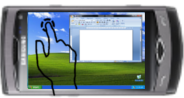
- To move the screen: drag the finger. To single click, tap the screen
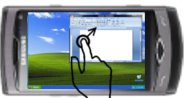
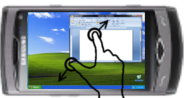
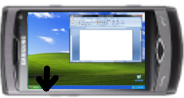
- To zoom in/out – use two-finger zooming or use side UP/DOWN buttons
- Don’t lock the screen before you connect by RemoteDesktop – the application doesn’t use the Windows RDP protocol. So it doesn’t support Windows-based authentication
Release Notes:
V1.0.1 (2011.01.11):
- key click marked by short vibration and key highlight
- user-definable layouts (Android: /sdcard/brelayout, Bada: /Others/bRemote)
- Bada: fast switching between layouts using Camera button (short click to switch the layout, long click to back to the main page)
- Settings page
V1.0.6 (2011.01.23):
- mouse wheel supported
- Full Keyboard available on Remote Desktop layouts.
V1.1 (2011.02.17):
- Customizable auto-hold of control keys (SHIFT, CTRL, ALT) and mouse buttons
- Cursor-oriented steering in remote desktop
V1.2 (2011.04.19):
- Password-based authorization
Known bugs:
- Administrator’s privilege request dialog is not displayed on the screen
Hi Jacek,
I downloaded the Remote Desktop, while my phone was on bada 1.0.2, hoping that it’s gonna work. Well, nope. It told me that connection is not established because of a timeout. 101.exe didn’t work, 102.exe didn’t work, now 105.exe doesn’t work… Since I updated to official 1.2, but I was unable to upgrade it from 1.0.1 to 1.0.6, so I decided to buy it (3€) – so maybe on 1.2 I can win some extra functionality. Errm, not. Same timeout.
I’m lost.
bControl was working excellently, using the same WiFi IP, but bada 1.2 killed it too… Ports are open, fully configured. Yet I don’t have a router, just a TP-Link TL-WN722N wifi adapter. Connection & signal strength is excellent, bControl was perfect before update, yet Remote Desktop and Snap N Go never worked. Can it be the culprit?
Ideas? Polski komentarz? 🙂
Will be version Remote Desktop for Samsung Wave 525 and Wave 533?
you have truly made a wonderful app. The Samsung App Store really requires developers like you.
The app has made the Wave a powerful and feature-rich handset.
Thanks again.
Pytanie do twórcy programu, czy jest planowana kontabilnosc mobilnego klienta z innymi serwerami VNC?
Pingback: Remote Desktop app for bada! | badaforums.net
Hello,
First of all, I do not know, how to set up my port 8899 / TCP?
Sorry, I am a bit of a noob in that section of programming and skills..
Can someone please help me?
Because I really want the app I had been waiting for so long!!
Regards,
John
How can I open the 8899/TCP port on my pc?
Regards,
John
nalezy sprawdzic:)
Czy da się to jakoś skonfigurować przy połączeniu ad hoc?
Witam, mam problem, podczas łączenia wyświetla mi się “Connection disconnected Connection failed due to timeout, Ensure the server is turned on and Connect again.” W czym moze byc problem? Jakie IP mam wpisać w programie? Pozdrawiam
A jakie IP wypisuje Ci serwer?
I can not speak english. Im from Afghanistan . can you help me. persion
با سلام
ميتوانيد در اين موضوع كمكم كنيد با زبان فارسي