Remote Desktop is a tool to control your PC computer your phone
Links to the app pages in stores:
- Android: Lite (v1.3) Full (v1.3)
- Bada OS (WVGA – 800×480): Lite (v1.2) Full (v1.2)
- Bada OS (WQVGA – 400×240): Lite (v1.2) Full (v1.2)

Main features:
- Mouse and Keyboard emulation
- IP based communication
- Multitouch support (Mouse drag’n’drop, Ctrl+C, etc)
- User-definable layouts (BRE format)
Before first use:
- Install RemoteDesktopServer on the PC (find the link below)
- Open the port TCP:8899 on the PC if any firewall is installed
- Run RemoteDesktopServer on the PC (add to autostart to have it always run)
Win32-compatible server:
Go to
www.simx.mobi/rdesktop
and click:
RemoteDesktopServerSetup130.exe
How to use:
- Install and run RemoteDesktopServer on PC machine (look the above section for details)
- If the WiFi is available: Make sure WiFi is running on the phone
- If the WiFi is not available: Ensure the port 8899/TCP is available from the Internet (redirect the port in your LAN router if needed)
- Run RemoteDesktop tool on the phone
- Set correct IP of the server
- Click Connect
- Press keyboard or mouse buttons to control your PC
General advice:
- To switch the layout: Android: Click menu, Bada: Click Camera button
- To go back to the main screen: Android: click Back button, Bada: Long press Camera button
Remote Desktop controlling:
- To move the screen: drag the finger. To single click, tap the screen
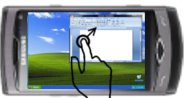
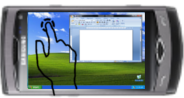
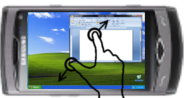
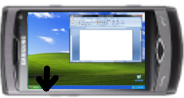
- To zoom in/out – use two-finger zooming or use side UP/DOWN buttons
- Don’t lock the screen before you connect by RemoteDesktop – the application doesn’t use the Windows RDP protocol. So it doesn’t support Windows-based authentication
Release Notes:
V1.0.1 (2011.01.11):
- key click marked by short vibration and key highlight
- user-definable layouts (Android: /sdcard/brelayout, Bada: /Others/bRemote)
- Bada: fast switching between layouts using Camera button (short click to switch the layout, long click to back to the main page)
- Settings page
V1.0.6 (2011.01.23):
- mouse wheel supported
- Full Keyboard available on Remote Desktop layouts.
V1.1 (2011.02.17):
- Customizable auto-hold of control keys (SHIFT, CTRL, ALT) and mouse buttons
- Cursor-oriented steering in remote desktop
V1.2 (2011.04.19):
- Password-based authorization
Known bugs:
- Administrator’s privilege request dialog is not displayed on the screen
This is a useful app. BUT it’s a pity that there is no password protection when connecting by external tcp/ip : everyone can access to your PC when port is open !!!
This is not mentionned, and there is no option to close this opended door.
This has to be changed very fast.
🙂 Nice trick! It works now, tank you!
The window of the rDesktop appears at bottom right corner of PC´s screen. Installing it on my Netbook (1024×600), it goes beyond the edge of the monitor and I can´t read the IP or even see the window to move it to sincronize the Smartphone. I also instaled it in another 2 computer, a desktop and a notebook. There I moved the window then could read the IP and it works like a charm; is the best samsumg app ever, but this bug must be solved. If possible, give me a solution so I can use it on my Netbook as well. Tanks!
Your’re right, the default position of the window is out of the 1024×600 screen. Wait ~2 days until Server 1.0.6 appears or move the window using the following steps:
http://www.howtogeek.com/howto/windows/bring-misplaced-off-screen-windows-back-to-your-desktop-keyboard-trick/
thanks a lot for this app. i never imagined that so gud app can be there in a mobile phone. 🙂
Great app!But it could be better), you should make “instant click” mode, so when you touch screen-it make left click it same position on PC, all who play great game “osu!” should understand me.)
What about Mac , why the hell they did not make mac version?
I use the samsung Wave 2 and have tried to get this app to run over and over but nothing, all I get is the ” connection failed due to timeout” Everything on the pc is set up as it should be, router on, port open, and nothing, any ideas?
Hey!
Really nice App! I’ve got one big problem: I’m able to control the mouse, scrolling is also no problem but i can’t see the desktop. I only see a grey background.
I could’nt find the same problem in the comments, so i ask you for help.
My system: Win7 x64; bada 1.0
Christopher
How get I a connection over 3G?
help me please i have intalled it and done port forwarding
but it does not show screen just shows grey